---
title: Getting started with Menu Manager
description: Menu Manager is an intuitive, simple tool for managing your connected app menus in the one place.
---
[Skip to content](https://support.doshii.com/menu-operating-hours/getting-started-with-menu-manager#main-content)
English
Show submenu for translations
[Create a support ticket](https://support.doshii.com/kb-tickets/new?hsLang=en)
![Doshii\_Logo\_1.png\]](https://support.doshii.com/hs-fs/hubfs/Doshii_Logo_1.png?height=48&name=Doshii_Logo_1.png)
Open main navigation
Close main navigation
- English
Show submenu for translations
- [Create a support ticket](https://support.doshii.com/kb-tickets/new)
- Go to doshii.com
Go to doshii.com
How can we help you?
- There are no suggestions because the search field is empty.
1. [Doshii Venue Support Guide](https://support.doshii.com/?hsLang=en)
2. [Menus and operating hours](https://support.doshii.com/menus-and-operating-hours?hsLang=en)
3. [Doshii Menu Manager](https://support.doshii.com/menus-and-operating-hours?hsLang=en#doshii-menu-manager)
# Getting started with Menu Manager
## Menu Manager is an intuitive, simple tool for managing your connected app menus in the one place.
**In this article:**
- [Supported apps](https://support.doshii.com/menu-operating-hours/getting-started-with-menu-manager#supported-apps)
- [Video: How to use Doshii Menu Manager (25 mins)](https://support.doshii.com/menu-operating-hours/getting-started-with-menu-manager#video)
- [Accessing Menu Manager](https://support.doshii.com/menu-operating-hours/getting-started-with-menu-manager#accessing-menu-manager)
- [Viewing and managing your menus](https://support.doshii.com/menu-operating-hours/getting-started-with-menu-manager#viewing-managing)
- [Managing items across multiple menus](https://support.doshii.com/menu-operating-hours/getting-started-with-menu-manager#all-items)
---
### Supported apps
Menu Manager currently works with the following apps:
- Uber Eats
- Doordash
- The full list of supported apps can be found [here](https://doshii.com/en-au/explore-app-connections)
If your app is not supported, you will need to manage your menu using Doshii Dashboard - contact your app partner or Doshii's Customer Success team for more information.
### Video: How to use Doshii Menu Manager (25 mins)
### Accessing Menu Manager
To access Menu Manager, [log in](http://connect.doshii.com/) to your Doshii account and click the **Menu** tab.
### Viewing and managing your menus
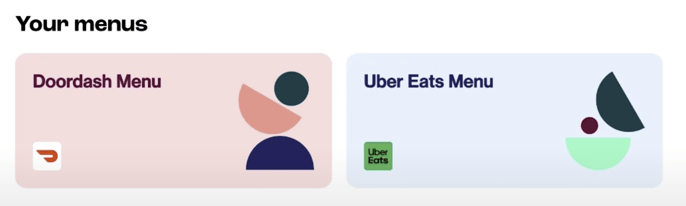
You can view and manage the menu for each of your connected apps by selecting an app menu tile from the **Your Menus** section.
**Note:** Any changes you make to the names, descriptions or prices of menu items and options will be made in your ordering app menus only. Doshii cannotmake any changes to your POS.
### Managing items across multiple app menus
The **All Items** view gives you a consolidated list of the menu items published across your connected app menus.
App logos will appear for each item to show which app menus it has been linked to.
To save time when changing menu items across your app menus, when you modify your items in the All Items view, the changes will be automatically reflected across your connected apps' menus.
**Note:** Any changes you make to the names, descriptions or prices of menu items and options will be made in your ordering app menus only. Doshii cannotmake any changes to your POS.
####
#### How does Menu Manager determine that a menu item is the same across my connected apps?
Menu Manager will determine that a menu item is shared across multiple connected apps if the following details match exactly across your connected app menus:
- item name
- item description
- image
- nutritional tags\*
- associated option groups
If these details match exactly across two or more connected apps, the item will be listed once in the **All Items** view. If any of these details differ across your connected apps, the item will be displayed multiple times in the **All Items** view.
Categories and prices are not considered when matching items across your connected app menus as they often vary between different apps.
\* Please note that not all apps support all the nutritional tags added through Menu Manager.
**After updating your menu, we recommend you carefully review your online menu to ensure that all details are accurate and complete, including allergen information.**
If you have any questions or need assistance, please feel free to reach out to our friendly Customer Success team using this [form](https://support.doshii.com/contact-support/get-in-touch?hsLang=en).
- [Getting started](https://support.doshii.com/getting-started?hsLang=en#main-content)
- [POS connection guides](https://support.doshii.com/getting-started?hsLang=en#pos-connection-guides)
- [Connecting your apps](https://support.doshii.com/connecting-your-apps?hsLang=en#main-content)
- [Ordering apps](https://support.doshii.com/connecting-your-apps?hsLang=en#ordering-apps)
- [Rostering apps](https://support.doshii.com/connecting-your-apps?hsLang=en#rostering-apps)
- [Business management apps](https://support.doshii.com/connecting-your-apps?hsLang=en#business-management-apps)
- [Menus and operating hours](https://support.doshii.com/menus-and-operating-hours?hsLang=en#main-content)
- [Getting started with menus in Doshii](https://support.doshii.com/menus-and-operating-hours?hsLang=en#getting-started-with-menus-in-doshii)
- [Doshii Menu Manager](https://support.doshii.com/menus-and-operating-hours?hsLang=en#doshii-menu-manager)
- [Doshii Dashboard (advanced users)](https://support.doshii.com/menus-and-operating-hours?hsLang=en#doshii-dashboard-advanced-users)
- [Managing operating hours](https://support.doshii.com/menus-and-operating-hours?hsLang=en#managing-operating-hours)
- [POS menu troubleshooting guides](https://support.doshii.com/menus-and-operating-hours?hsLang=en#pos-menu-troubleshooting-guides)
- [Orders and docket printing](https://support.doshii.com/orders-and-docket-printing?hsLang=en#main-content)
- [Customising dockets](https://support.doshii.com/orders-and-docket-printing?hsLang=en#customising-dockets)
- [POS reporting](https://support.doshii.com/orders-and-docket-printing?hsLang=en#pos-reporting)
- [Troubleshooting printing issues](https://support.doshii.com/orders-and-docket-printing?hsLang=en#troubleshooting-printing-issues)
- [Managing your Doshii account](https://support.doshii.com/managing-your-doshii-account?hsLang=en#main-content)
- [Subscriptions and billing](https://support.doshii.com/managing-your-doshii-account?hsLang=en#subscriptions-and-billing)
- [Contact support](https://support.doshii.com/contact-support?hsLang=en)
# Doshii Connect Pty Ltd
Doshii Help Center
Copyright © 2026, Doshii Connect Pty Ltd